Motion Control

Prompt
0/5000
Reference Materials

One reference video and one character image

Both required. Drag & drop, or choose a file
Settings
Credits: -
Cost: 0 ⚡

Motion Control

Preview clip

AI Motion Control: Animate Any Character with a Reference Video

Turn a still character image into a lifelike performance with AI motion control. Upload a reference video to transfer body movement, facial expression, timing, and camera direction with Kling 3.0.

Command Every Action with a Reference Video

Command Every Action with a Reference Video

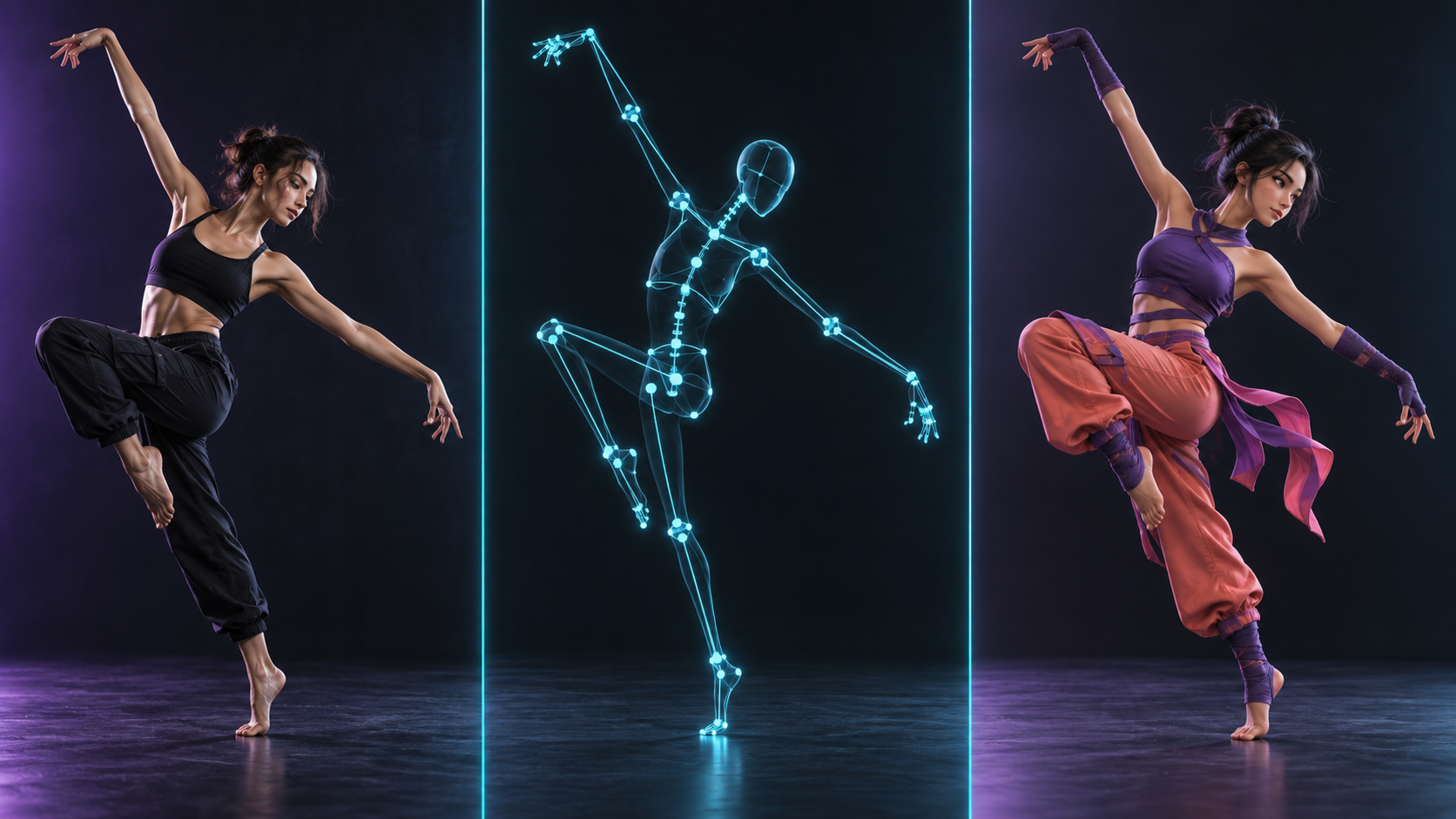
Direct gestures, poses, pacing, and full-body movement without describing every beat in a prompt. Kling Motion Control reads the performance in your reference video and maps it onto your character with smooth, intentional motion.
Animate Memes and Viral Characters

Animate Memes and Viral Characters

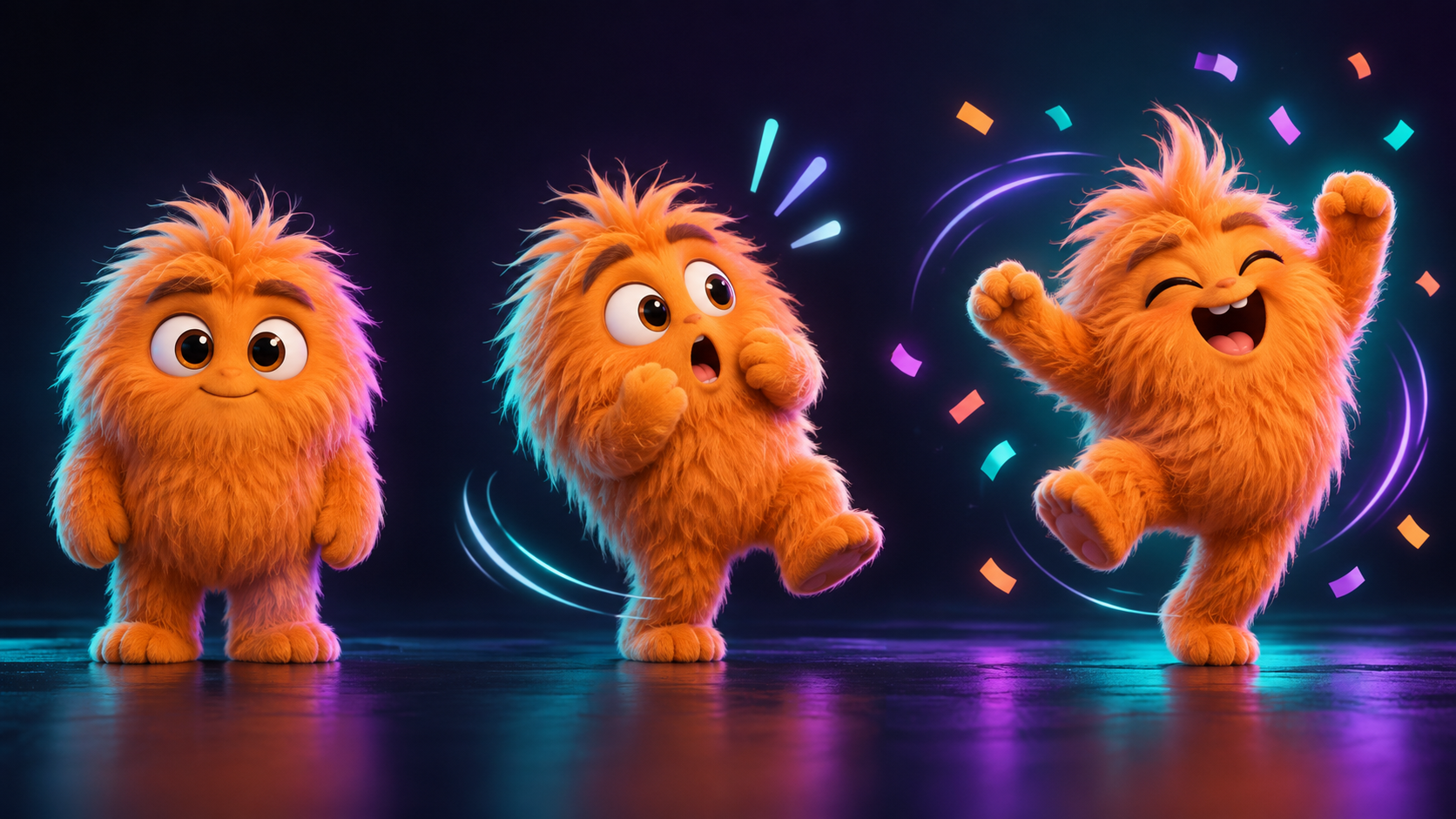
Make a mascot, illustration, avatar, or meme character dance, react, and perform on cue. Preserve the look of your source image while turning familiar characters into fresh short-form content.

Recreate Dance and Professional Performance

Recreate Dance and Professional Performance

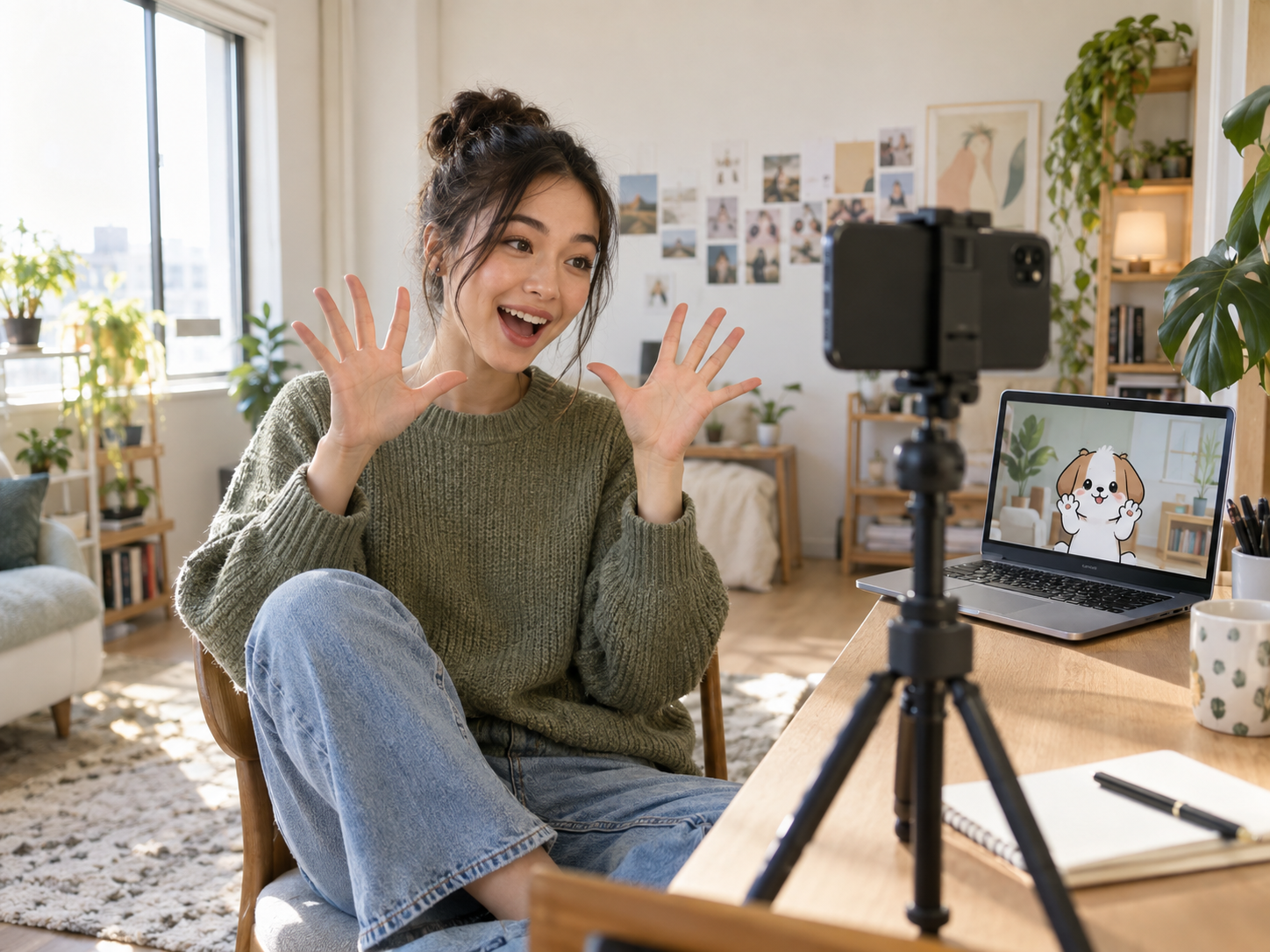
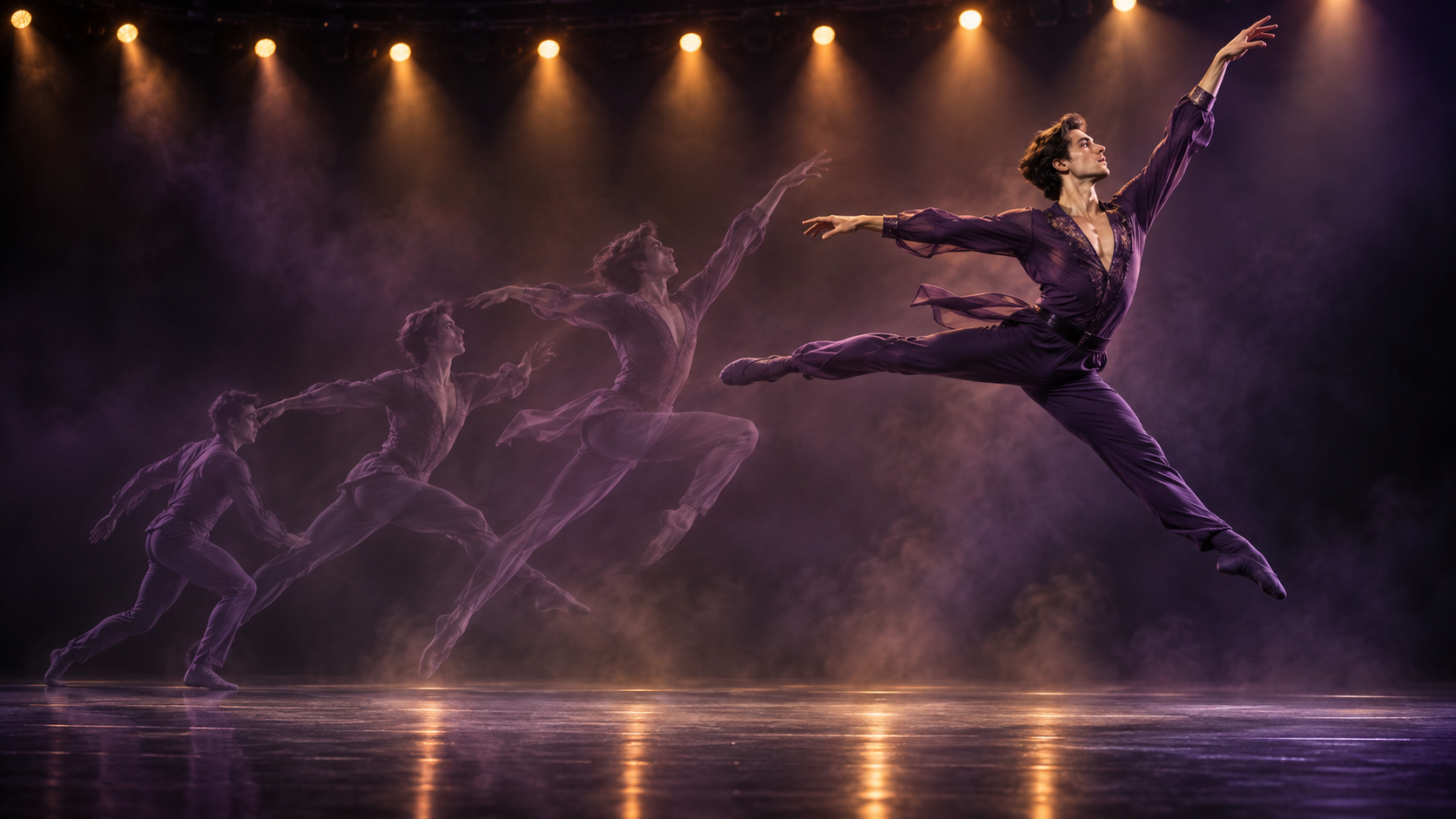
Use your own choreography, acting, or presentation as the motion source. The AI follows body language and expression so creators can reproduce a specific performance without keyframing every movement.

Keep Every Character Style Consistent

Keep Every Character Style Consistent

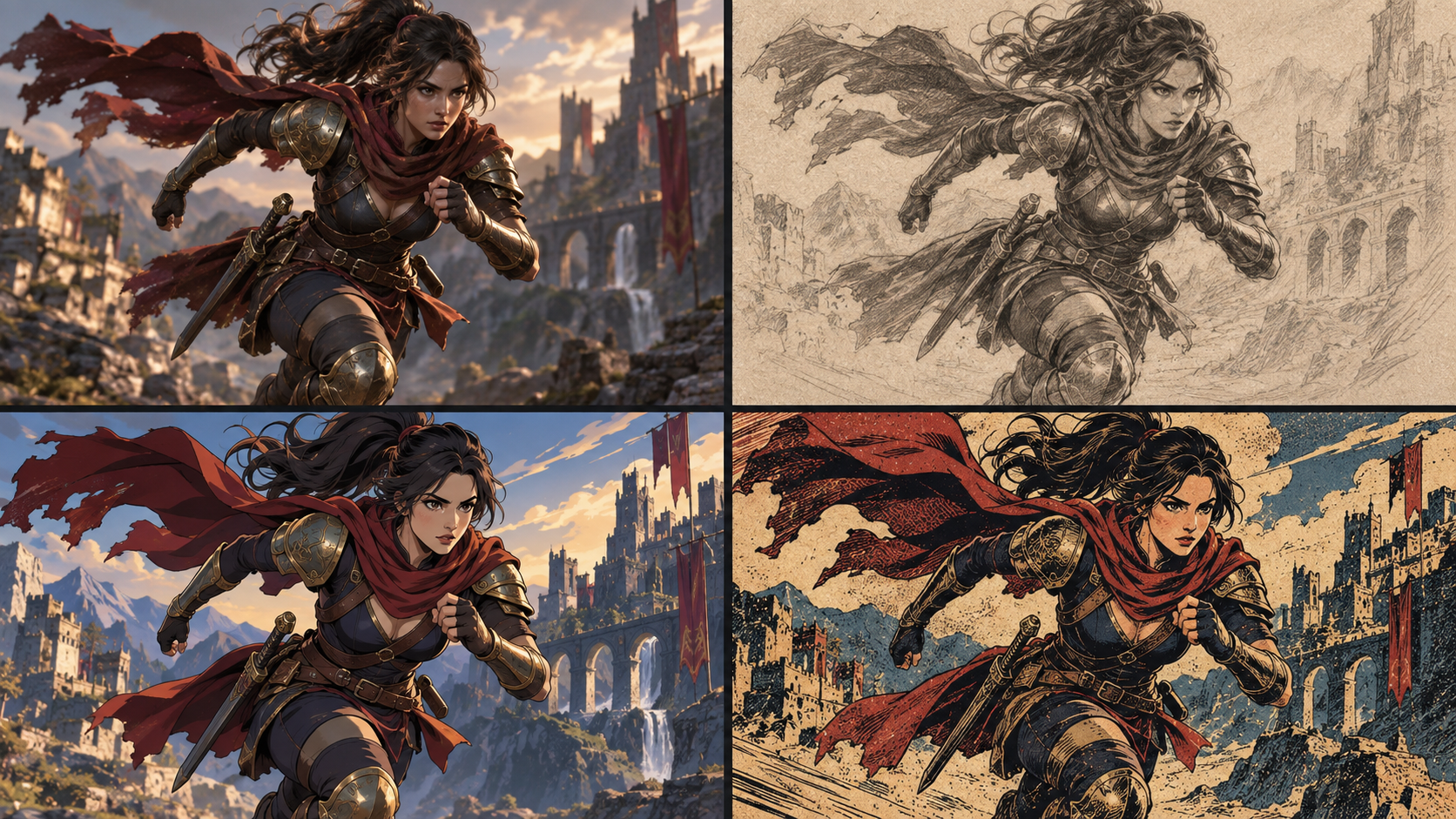
Animate realistic portraits, anime art, 3D characters, and stylized illustrations while retaining their identity, clothing, proportions, and visual language from frame to frame.

Who Can Create with AI Motion Control?

Make Scroll-Stopping Social Videos

Make Scroll-Stopping Social Videos

Turn avatars, reaction images, and original characters into expressive TikTok, Reels, and Shorts content built around movements your audience instantly understands.

How to Use AI Motion Control in 3 Steps

Create controlled character animation online without motion capture equipment or manual keyframes.

1. Upload a Character Image

Choose a clear image with the character's body visible. Similar body proportions between the image and motion reference usually produce the most natural result.

2. Add a Motion Reference

Upload a reference video with readable, steady movement. Select image or video orientation based on which source should guide the character's direction.

3. Generate and Download

Choose the quality, add optional scene direction, and generate. Review the animated result, then download the MP4 or create another take.

Explore More AI Video Creation Tools

Sarah JohnsonMichael ChenEmily Rodriguez
Creator feedback Five-star experiences

Built for Creators Who Need More Control

See how creative teams use reference-driven movement to turn still characters into directed, repeatable performances.

Sarah Johnson

Sarah Johnson

Content Creator

The movement follows my reference clearly

I can record a simple performance, apply it to my illustrated character, and get a clip that feels deliberately directed instead of randomly animated.

Michael Chen

Michael Chen

Creative Director

A practical way to test character performances

Motion references make it much easier to communicate timing and body language. We can explore campaign ideas quickly before committing to a larger production.

Emily Rodriguez

Emily Rodriguez

Social Media Manager

Great for repeatable mascot content

We can reuse the same brand character with new gestures and trends while keeping its appearance recognizable across every short video.

AI Motion Control FAQs

What is AI motion control?+

AI motion control transfers the movement of a person in a reference video to a character in a still image. Instead of inventing all movement from a prompt, the model uses the reference performance to guide pose, gesture, timing, and expression.

How does reference video motion transfer work?+

Upload one character image and one motion video. Kling 3.0 analyzes the performer's movement and applies that motion to the image while working to preserve the character's face, clothing, proportions, and style.

Which character images work best?+

Use a clear, high-quality image with the face and moving body parts visible. A character whose pose and body proportions resemble the performer in the reference video gives the model a cleaner motion mapping.

Can I upload my own motion reference video?+

Yes. You can upload your own performance in MP4 or MOV format. Use footage you have the right to use, keep the subject well framed, and avoid rapid cuts or heavy obstruction for more predictable motion.

Can it animate anime, 3D, and illustrated characters?+

Yes. Motion control can work with realistic people, anime art, 3D renders, mascots, and other stylized characters. Results are strongest when the body is clearly readable in both the image and reference video.

Can I make videos for TikTok, Reels, and YouTube Shorts?+

Yes. Use a vertical reference for social-first framing, animate a character with dance, reaction, or presenter motion, and download the result as an MP4 ready for editing or publishing.

What is the difference between image and video orientation?+

Image orientation prioritizes the direction and framing of the uploaded character image and supports clips up to 10 seconds. Video orientation follows the reference video's direction and can support clips up to 30 seconds.

What video quality does Motion Control support?+

You can choose Standard 720p or Professional 1080p output. The available duration and credit cost appear in the generator before you submit the task.

Do I need animation software or a powerful computer?+

No. Motion generation runs online on Veo3's servers. You only need a modern browser to upload the character and reference video, start the task, and download the finished animation.

Bring Any Character to Life with AI Motion Control

Upload a character image and a reference performance to create precise, expressive animation in your browser.